Configure a card product
To create a new card product in the Dashboard, first select and configure the card package. After configuring your card package, we'll review and validate it before it can be used. Your package choice determines features and pricing.
Create a card product
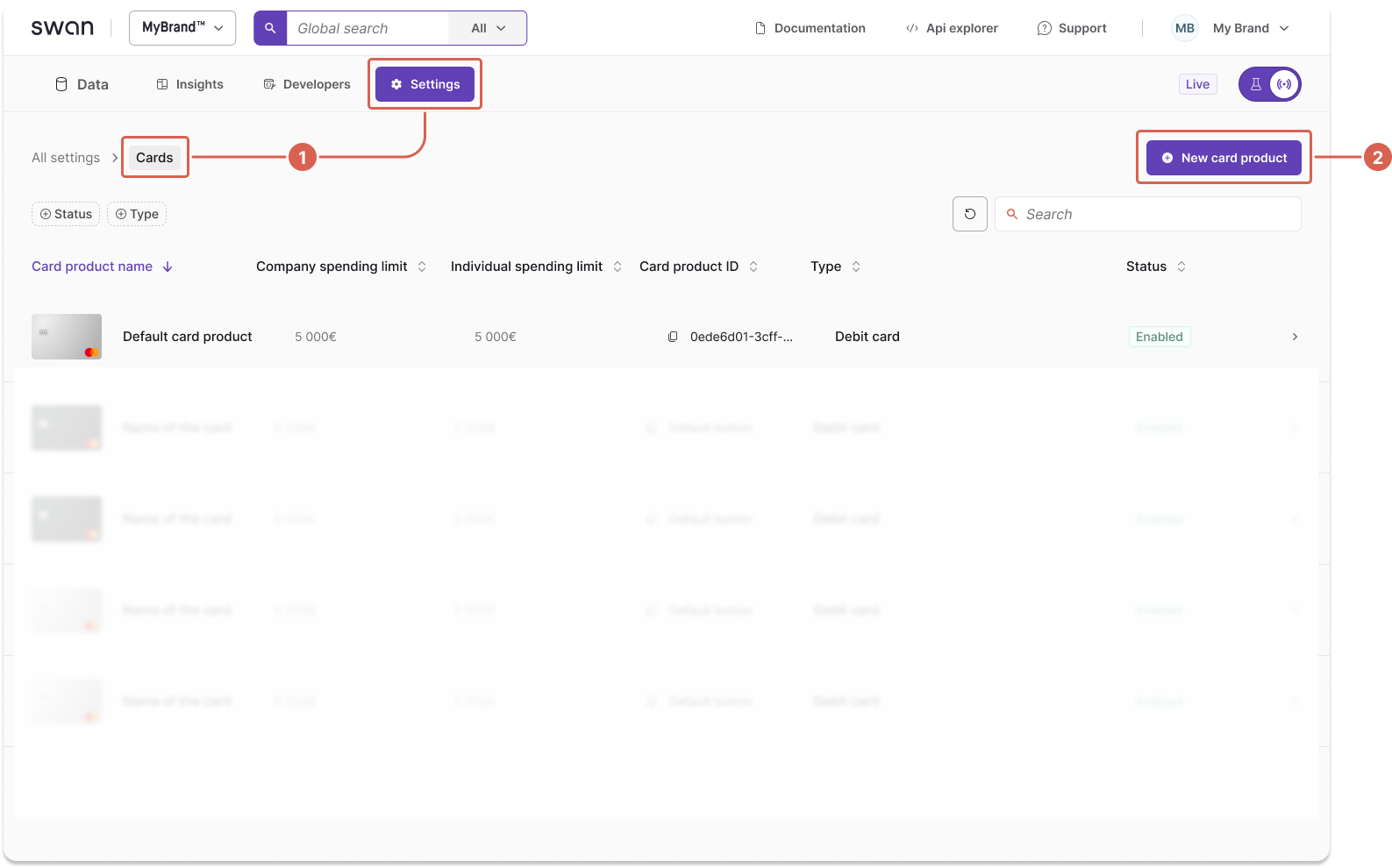
- Go to Dashboard > Settings > Cards.
- Select + New card product.
- Select a card package: Standard, Essential, or Premium. Select No package for basic features with no insurance and base fees.
caution
You cannot change the card package tier after creating the card product.
- Name your new card product.
- Toggle Allow physical cards to enable physical cards.
- Select Create.
Configure your card design
- Select + Create new design.
- Choose your card style:
- Black or silver (Standard and Essential)
- Metal (Premium only)
- Custom (available for all card products)
- Adjust your logo size.
- Upload your logo file.
- Select Submit for review.